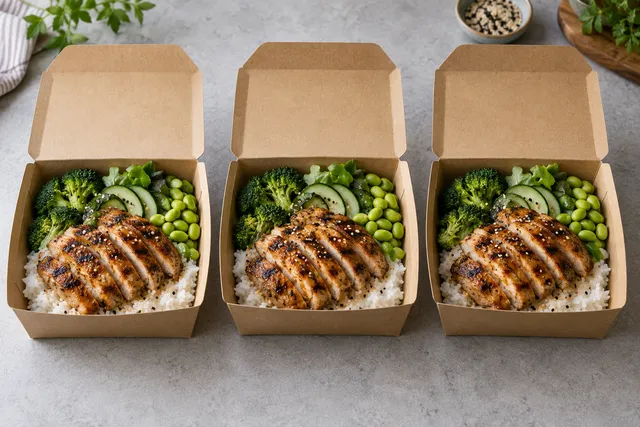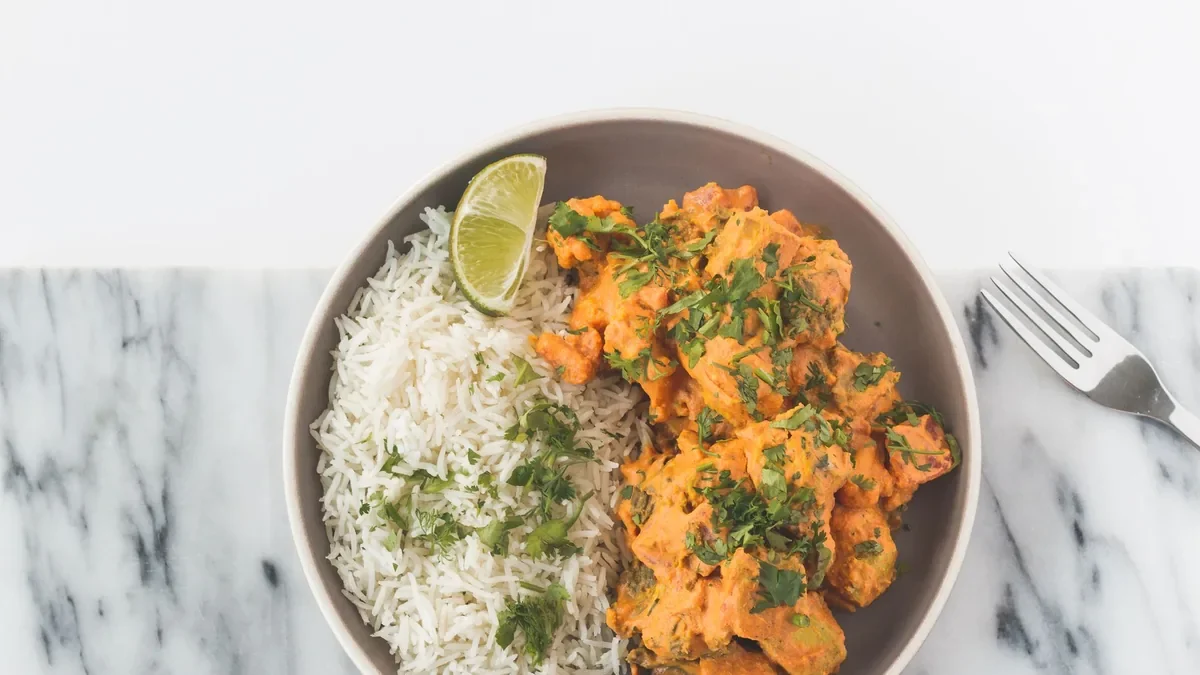
If you are looking for Zomato photo size requirements, the safest practical answer is to prepare clean, high-resolution square food photos, keep the dish realistic, avoid text or promotional overlays, and confirm the latest Zomato restaurant upload rules before submitting. For Indian restaurants, the size matters, but sharpness, crop, lighting, and menu accuracy matter just as much because the image has to work in small delivery-app thumbnails.
The short answer
For a restaurant menu photo intended for Zomato, build your workflow around a square master export. A practical working target is 1200 x 1200 px or larger, saved as a clear JPG or PNG, with the actual dish centered and enough space around the food so the app can crop it cleanly.
That does not mean Zomato will always display the full image exactly as uploaded. Delivery platforms often resize, crop, compress, or review images before they appear live. Treat your upload file as the clean source image that gives the marketplace enough quality to process.
For the most current India-specific rules, keep this page bookmarked: Zomato India delivery photo specs. Platform requirements can change, so use this article as an operator workflow, then check the latest marketplace guidance before a bulk upload.
If by “Zomato photo size” you mean a restaurant profile image or logo rather than a food menu image, do not assume the square menu-photo guidance above applies. Check the image field’s current requirements in your merchant dashboard; this guide focuses on food images for menu items.
Practical Zomato photo size guidance
Most restaurant teams do not need a complicated photography pipeline. They need one reliable export standard that works across menu items, is easy for staff or agencies to repeat, and does not create rejections because of obvious quality issues.
Use this as your working standard:
| Requirement | Practical recommendation | Why it matters |
|---|---|---|
| Aspect ratio | 1:1 square | Safer for menu grids and thumbnails |
| Working size | 1200 x 1200 px or larger | Gives the platform enough image data |
| File format | JPG for most photos, PNG only when needed | JPG is usually smaller and practical |
| Crop | Dish centered with slight breathing room | Prevents cut-off plates and toppings |
| Lighting | Bright, natural-looking, not harsh | Helps food look appetizing at thumbnail size |
| Background | Clean and low-distraction | Keeps attention on the dish |
| Text overlays | Avoid | Can look promotional or violate marketplace rules |
| Accuracy | Must match the real dish | Protects customer trust and reduces complaints |
The exact upload interface may accept different file sizes or dimensions, but consistency is the part you control. If every item is exported in a different crop, color tone, and plate angle, the menu starts to feel messy even when each photo is technically acceptable.
What Zomato is really judging beyond pixels
Restaurant owners often search for image size first because it feels like the platform has one hidden number that unlocks approval. In practice, the image quality signals are broader.
A menu photo needs to answer the customer’s basic question quickly: “Is this the dish I want to order?” The app thumbnail is small, the customer is scrolling fast, and similar dishes may sit next to each other. A technically large image can still fail if the food is dark, cropped awkwardly, or hidden under props.
Before worrying about advanced editing, check these fundamentals:
- The dish should be the clear subject.
- The food should be sharp, especially the main ingredient.
- The crop should not cut off important toppings or sides.
- The color should look appetizing but believable.
- The portion should reflect what the customer actually receives.
- The photo should not include unrelated dishes unless it is a combo or platter.
- The background should not compete with the food.
- The image should not use fake steam, fake garnish, or unrealistic AI changes.
FoodPhoto.ai is built around that practical middle ground: upload real dish or phone photos, then improve light, crop, background, and consistency so the final image is menu-ready without turning the food into fantasy.
India-specific considerations for Zomato menu photos
Indian menus often have dense categories, regional dishes, combo meals, thalis, biryani variants, snacks, beverages, sweets, and add-ons. This makes consistent photo treatment more important, not less.
For example, a paneer tikka photo, a dal makhani photo, and a family biryani photo should not all be framed the same way. But they should feel like they belong to the same restaurant. Customers should be able to compare items without wondering whether the photos came from different kitchens.
For Indian restaurants, pay close attention to:
- Sauce and gravy visibility: Curries and gravies can look flat if shot too close or too dark.
- Rice texture: Biryani, pulao, fried rice, and khichdi need enough detail to avoid looking like one solid mass.
- Portion honesty: Thalis, combos, and family packs should show the actual included components.
- Packaging accuracy: If the item is delivery-only and packaging is important, decide whether the platform allows packaging shots or whether the dish should be plated.
- Color restraint: Indian food can be naturally colorful, but oversaturation makes dishes look artificial.
- Category consistency: Starters, mains, breads, desserts, and beverages can each have slightly different framing, but the overall menu should still feel organized.
For more local workflow guidance, see India Zomato photography, especially if your team is preparing photos across multiple outlets or cuisines.
Recommended export workflow for restaurant teams
A good Zomato photo workflow starts before editing. If the source image is unusable, the export settings cannot save it. You do not need a studio for every item, but you do need a repeatable capture and QA process.
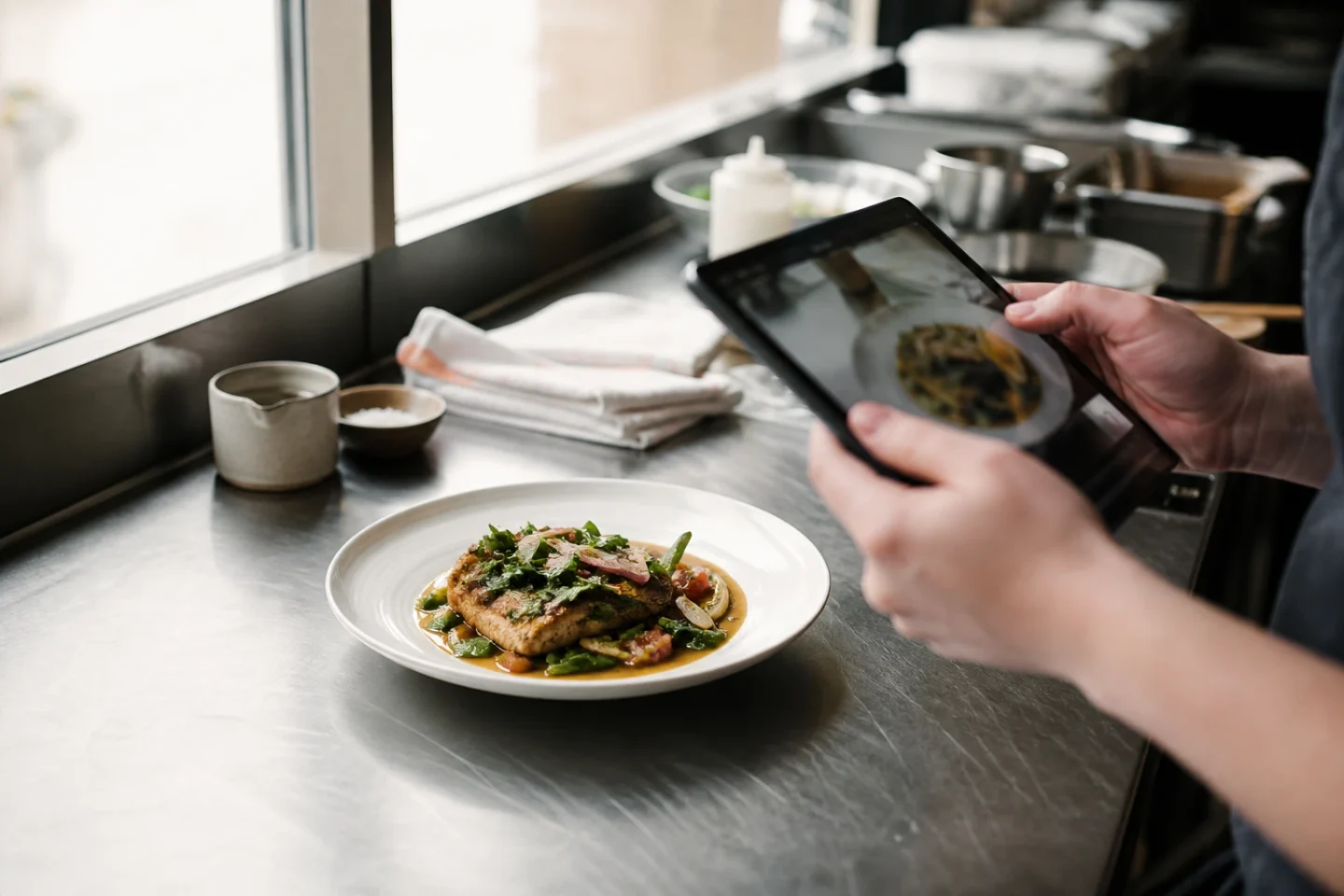
Use this workflow for each menu item:
- Photograph the real dish in good light.
- Choose the cleanest frame where the food is sharp.
- Crop to square with the dish centered.
- Correct brightness and white balance.
- Clean the background if it distracts from the dish.
- Keep the food realistic and recognizable.
- Export at 1200 x 1200 px or larger.
- Compress only enough to keep the file practical.
- Check the image at small thumbnail size.
- View the export at thumbnail size before uploading it.
The thumbnail check is important. Many menu images look acceptable when opened full screen but fail when reduced to the size customers actually see. If the dish is not clear at a small size, adjust the crop before upload.
Menu-ready export checklist
Before uploading a photo to Zomato, run this checklist. It is faster to catch issues before upload than to fix a messy live menu later.
- Image is square or safely croppable to square.
- Export is high resolution, ideally 1200 x 1200 px or larger.
- Dish is centered and not cut off.
- Main ingredient is sharp.
- Lighting is bright but not blown out.
- Food color looks natural.
- Background is clean and not distracting.
- No text, badges, watermarks, or promotional overlays.
- Portion shown matches the menu item.
- Combo or thali components match the description.
- File name clearly identifies the dish.
- Image has been checked at thumbnail size.
- Current marketplace rules have been reviewed.
For a broader review process across delivery apps, use the delivery app photo QA checklist. It is useful when the same menu images will be adapted for Zomato, Swiggy, Google Business Profile, and your own website.
Common Zomato photo mistakes to avoid
The most common upload problems are not exotic. They are basic production issues that happen when restaurants rush a menu launch.
Too much zoom. Close crops can make a dish feel abundant, but they also remove context. If the crop cuts off half the plate, the app thumbnail may look accidental.
Dark kitchen lighting. Many phone photos are taken under mixed kitchen lights. The result can be yellow, green, or dull. Correct the color before export.
Inconsistent backgrounds. One item on a steel counter, another on a wooden table, another on a black plate, and another on a paper bag can make the menu feel unplanned.
Misleading AI edits. Enhancing light and crop is useful. Adding ingredients, changing portion size, inventing garnish, or making the dish look premium when it is not creates trust risk.
Text on the image. Menu item names, discount tags, “best seller” labels, and offer badges should usually stay out of the photo. The platform interface already has places for item names and offers.
Using one image for many items. Reusing the same paneer image for several paneer dishes may save time, but it weakens customer confidence and can create support issues.
How to handle different dish types
Not every dish needs the same composition. A single export size can stay consistent while the visual approach changes by category.
| Dish type | Best crop approach | Watch out for |
|---|---|---|
| Biryani and rice bowls | Slight overhead or 45-degree angle | Flat-looking rice with no texture |
| Curries and gravies | 45-degree angle with visible surface detail | Oil glare and dark sauces |
| Pizza and flatbreads | Overhead or slight angle | Cut-off edges and unclear toppings |
| Burgers and sandwiches | Side angle or 45-degree angle | Hidden fillings and messy shadows |
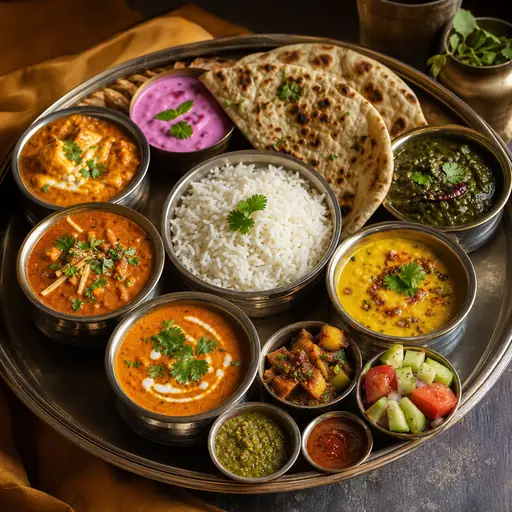
| Thalis and combos | Overhead or high 45-degree angle | Missing components or tiny items |
| Drinks | Straight or slight angle | Reflections, condensation blur, clutter |
| Desserts | Close but not cramped | Melted edges, dull color, messy plating |
This is where a menu refresh workflow helps. Instead of editing each photo in isolation, group items by category, decide the crop pattern, and export the full batch consistently.
File naming for Zomato upload batches
Use a dish, crop and version so the kitchen can identify the approved image. Examples: paneer-thali-square-v01.jpg, chicken-biryani-item-v02.jpg and masala-dosa-wide-v01.jpg. Avoid ambiguous names such as IMG_001.jpg or final-final.jpg. Keep the original photo and its approved export together.
Should you use AI for Zomato menu photos?
AI can be useful for restaurant photo preparation when it is used as an editing and consistency tool. It becomes risky when it invents food the kitchen does not serve.
A responsible AI workflow should improve the real source photo by correcting issues such as:
- Poor lighting
- Distracting background
- Inconsistent crop
- Minor color imbalance
- Uneven framing
- Low menu consistency across items
It should not create a dish from scratch and present it as the real menu item. It should not add toppings, change the protein, enlarge the portion, or make a budget item look like a premium studio dish.
That distinction matters. Delivery app customers are not buying a concept image. They are ordering dinner. The photo should help them choose confidently and receive what they expected.
A simple bulk process for a menu refresh
If you are refreshing a full Zomato menu, do not handle images one by one without a system. Use a batch workflow.
Start with your top-priority categories. For many restaurants, that means bestsellers, high-margin items, new launches, combos, and dishes where the current image is missing or poor.
Then build a spreadsheet with these columns:
| Column | Purpose |
|---|---|
| Menu item name | Match the platform listing |
| Category | Helps batch similar crops |
| Current photo status | Missing, poor, acceptable, approved |
| Source photo available | Yes or no |
| Edited export ready | Yes or no |
| QA passed | Yes or no |
| Uploaded | Yes or no |
| Notes | Portion, garnish, packaging, replacement needed |
This keeps the work visible. It also helps owners, managers, marketers, and outsourced editors avoid editing the wrong dish or uploading an outdated file.
When to re-check Zomato rules
Because marketplace policies can change, check the current rules at these points:
- Before your first upload to a new restaurant account
- Before a large menu refresh
- Before using any AI-edited images
- Before adding packaging, text, logos, or offer graphics
- After repeated photo rejections
- When expanding to a new city, brand, or cuisine format
Use current platform documentation and your merchant dashboard as the source of truth. This article gives a practical restaurant workflow, not a guarantee that every upload will be accepted under every future rule.
Final pre-upload review
Before sending images to your team or uploading them yourself, open the export folder and scan the full menu as a customer would see it.
Ask these questions:
- Does the menu look like one restaurant, not a random image collection?
- Are the bestsellers visually strong?
- Are any dishes too dark, too zoomed in, or confusing?
- Do combos show what is actually included?
- Are there duplicates that could mislead customers?
- Would the customer recognize the delivered item from the photo?
If the answer is no, fix the image before upload. A delivery menu is not just a list of products. It is a visual ordering interface.
Make your Zomato photos menu-ready
FoodPhoto.ai helps restaurant owners turn real dish and phone photos into cleaner, brighter, more consistent menu images for delivery apps. The goal is honest enhancement: better light, better crop, cleaner background, and export-ready consistency without inventing food the kitchen does not serve.
If you are preparing a Zomato refresh, start with the India-specific specs at Zomato India delivery photo specs, review the local workflow in India Zomato photography, and run your batch through the delivery app photo QA checklist.
When you are ready to process a set of real menu images, compare the try pack and menu refresh options on FoodPhoto.ai pricing. A small, organized batch is usually the fastest way to see whether your Zomato menu photos are ready for a wider rollout.
FAQ
What is the best Zomato photo size for restaurant menu items?
Use a high-resolution square image as your working export, ideally at least 1200 x 1200 pixels, then check Zomato's current restaurant photo upload guidance before publishing. Square crops are usually safest because food delivery apps commonly show dishes in thumbnail grids and cropped previews.
Can I upload phone photos to Zomato?
Yes, phone photos can work if the dish is real, sharp, well lit, accurately cropped, and not misleading. Avoid heavy filters, fake ingredients, extreme AI changes, or images that do not match what the customer receives.
Should Zomato food photos have text or logos on them?
Avoid text, logos, badges, watermarks, and promotional overlays on menu item photos unless the current marketplace rules clearly allow them. Clean dish-first images are safer and easier for customers to understand.
How should restaurants prepare many Zomato photos at once?
Create one export workflow: clean the original dish photo, crop consistently, save a square high-resolution version, compress without visible blur, name files clearly, and run a QA pass before upload.
Next step
Choose one real dish photo, enhance it, and compare the before/after at delivery-app thumbnail size. If it still looks like the dish your kitchen serves, use the same standard across the rest of your menu.
Enhance real menu photos with FoodPhoto.ai
Check the current Zomato upload
Zomato’s developer documentation and policies are the primary starting points. A recommended working master in this guide does not establish the minimum, aspect ratio or file cap for a particular merchant field. Check the live account before exporting.