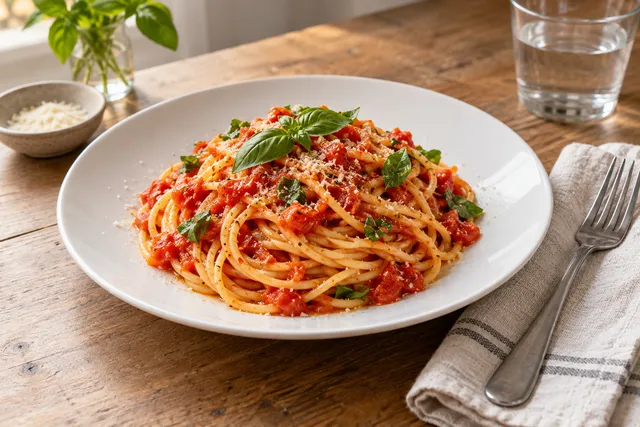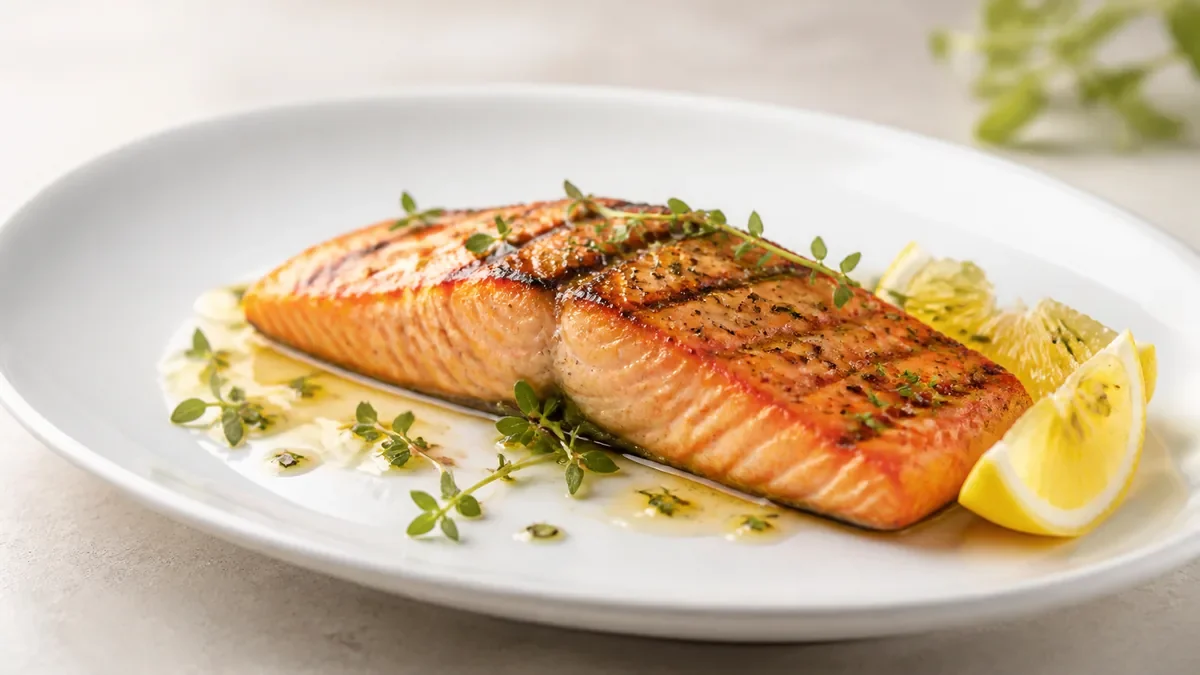
A menu description and photo alignment audit helps ensure that customers see, read about, select, and receive the same dish. Compare the title, description, modifiers, portion, included sides, garnish, packaging, availability, and image together. Correct obvious mismatches before publishing, and use edited imagery only to improve the presentation of a real dish—not to promise food, quantity, or styling the kitchen will not deliver.
The short answer
Customer disappointment often begins with a small mismatch: a photo shows fries that are not included, a description names a topping hidden by the crop, a modifier changes the portion but the image stays the same, or an edited image makes a delivery item look plated when it arrives in a sealed container.
The solution is an item-level audit. For every menu item, ask one practical question: Would a reasonable customer understand exactly what they are ordering and what will arrive? If the answer is no, update the copy, modifier structure, photo, or operational setup before promoting the item.
This process is especially useful for restaurants using phone photos, delivery marketplaces, seasonal menus, and AI-assisted image enhancement. The goal is not to make every image perfect. The goal is to make every image trustworthy.
Why menu and photo mismatches happen
Menu content is usually maintained in separate places. A chef changes the garnish, a manager updates the description, a delivery platform keeps an older image, and the packaging team switches containers. Each change may seem minor. Together, they can create a different customer expectation.
Common causes include:
- A signature ingredient is removed but remains visible in the photo.
- A side dish appears in the image but is available only as an extra.
- The menu name says “family size” while the image shows an individual serving.
- A modifier changes protein, sauce, or portion but the image suggests only the default option.
- A dine-in plate is photographed while delivery customers receive a box or bowl.
- A temporary special remains visible after the item is unavailable.
- Cropping removes context, making a bowl or platter appear larger than it is.
- Editing improves color or texture but also adds garnish, steam, sauce, or ingredients.
A good audit treats the menu item as one customer promise rather than a collection of unrelated assets.
The seven-part dish identity audit
1. Match the menu name to the visible dish
Start with the title. It should identify the dish clearly without suggesting a different preparation. If the menu says “crispy chicken sandwich,” the photo should show that sandwich rather than a similar grilled version. If the item has a regional or branded name, add a plain-language description so customers do not have to guess.
Check whether the image supports the key words in the title:
- Main protein or vegetable
- Cooking method when it changes expectations
- Sauce or filling
- Size or serving format
- Bowl, wrap, platter, box, or sandwich format
Do not rely on a photo to explain an important distinction. Put the distinction in the title or description as well.
2. Compare the description with what is actually visible
Read the description beside the image, not in isolation. Identify every concrete promise: ingredients, toppings, sauces, sides, spice level, preparation, and serving style.
If the description says “served with roasted vegetables,” the vegetables should be included in the standard order or clearly identified as a styling element that is not part of the item. If the description highlights a sauce, make sure it is included and recognizable, whether it is drizzled, poured, or packed separately.
Descriptions do not need to list every visual detail, but they should not conflict with the image. When an ingredient is easy to mistake for another ingredient, use precise wording.
3. Audit portions and scale
Portion mismatch is one of the fastest ways to create a negative reaction. A tight crop, a large plate, or an overhead angle can make a normal serving appear substantially larger.
Review the following:
- Is the photographed portion the default portion?
- Does the item have small, regular, large, or family-size choices?
- Does the image show a side that changes with size?
- Is the container or plate representative of the purchase channel?
- Does the description explain how many people the item is intended to serve?
If multiple sizes share one photo, label the image or description clearly. When the visual difference is significant, use separate images if the platform and workflow allow it.
4. Check modifiers and substitutions
Modifiers create a common alignment problem because one photo often represents several versions. A customer may choose extra cheese, a different protein, no onions, a gluten-free base, or an additional side. The default image cannot accurately show every combination.
That is acceptable if the menu makes the relationship clear. Use the default image for the base item, then describe modifiers in plain language. Avoid showing an optional upgrade as if it were included.
For important paid additions, consider whether the modifier needs its own supporting image. Also confirm that the kitchen ticket, point-of-sale system, and delivery listing use the same modifier names.
5. Verify sides, garnish, and finishing details
Garnish can look like an ingredient. A lemon wedge, herb, dipping sauce, sesame seeds, pickles, or side salad may be interpreted as part of the order.
Create a simple distinction between:
- Included components
- Optional add-ons
- Plating or styling elements
- Packaging components
- Elements that vary by availability
If a garnish is not included, remove it from the customer-facing image when practical. If it is included only at certain locations or for certain channels, say so in the description or use a channel-specific image.
6. Compare dine-in presentation with delivery packaging
A restaurant may serve the same recipe in a ceramic plate, paper bowl, clamshell, or sealed tray. The delivery image should not imply a presentation that packaging makes impossible.
This does not mean every delivery photo must look plain. It means the image should communicate the dish honestly. Show the food in a clean, representative format, and avoid promises about crispness, separation, sauce placement, or arrangement that will not survive transport.
For delivery-specific work, review the current rules of each marketplace before uploading. Image dimensions, backgrounds, prohibited content, and presentation requirements can change.
7. Confirm availability and operational reality
An aligned image is still misleading if the item is unavailable, location-specific, time-limited, or dependent on an ingredient that is frequently substituted.
Check the image against:
- Current menu status
- Store or location availability
- Breakfast, lunch, or dinner hours
- Seasonal ingredients
- Delivery radius and packaging
- Actual kitchen assembly
- Current price and included components
When a dish changes, treat the image as part of the menu update. Do not leave a legacy image live simply because it is attractive.
A practical audit table
Use this table for each high-volume, high-margin, or frequently changed item.
| Audit area | Question to ask | Corrective action |
|---|---|---|
| Name | Does the title describe the item shown? | Rename the item or replace the image. |
| Description | Are all important promises accurate? | Rewrite unclear or outdated copy. |
| Portion | Does the image represent the selected default size? | Add size context or create separate images. |
| Modifiers | Could an optional upgrade look included? | Label the base item and modifier clearly. |
| Sides | Are visible sides included in the order? | Remove, label, or add the side operationally. |
| Garnish | Could styling be mistaken for an ingredient? | Use only included finishing elements. |
| Packaging | Does the photo match the purchase channel? | Photograph or edit toward the real delivery format. |
| Availability | Can the restaurant consistently deliver this item? | Update status, location rules, or image. |
| Editing | Did enhancement change the dish identity? | Revert unsupported additions or alterations. |
Alignment checklist before publishing
Use this final checklist for a menu item, menu section, or photo refresh:
- The dish name matches the food shown.
- The description names important ingredients and preparation details accurately.
- The default portion is represented without misleading scale.
- Optional toppings, sides, and upgrades are not presented as included.
- Modifiers use the same names in the menu, kitchen system, and delivery listing.
- Garnish and styling elements are included or clearly non-promissory.
- The image matches the relevant dine-in, pickup, or delivery format.
- The item is currently available wherever the image is published.
- The crop and angle do not hide a material limitation or exaggerate quantity.
- Any AI enhancement preserves the real dish, ingredients, and portion.
- The file meets the marketplace’s current image requirements.
- Staff know which version of the dish the image represents.
How to use honest image enhancement
Many restaurants have usable food photos that need better light, cleaner backgrounds, consistent crops, or more professional presentation. Those are reasonable enhancement goals. You can learn more about the principles in FoodPhoto.ai’s food photo ethics guide.
FoodPhoto.ai is designed around uploading real dish or phone photos and improving the visual presentation: light, background, crop, and consistency. That makes it useful for a menu refresh when the source image reflects the food the kitchen actually serves.
Set boundaries before editing. Do not add unavailable ingredients, increase the apparent portion, replace a delivery container with an unrealistic plated presentation, or create a dish from a text description when no real reference exists. If an image needs a major conceptual change, it should be treated as a new creative asset rather than an accurate menu representation.
For a repeatable process, document the rules in a restaurant AI photo policy template. Include who approves images, what edits are allowed, how source photos are stored, and when a new photo is required after a recipe or packaging change.
Build the audit into the menu workflow
An audit works best when it is attached to existing operational moments. Add it to new-item setup, recipe changes, packaging changes, seasonal launches, and monthly menu maintenance. Assign one owner for copy and one owner for kitchen accuracy, even if the same person performs both checks.
A simple workflow is:
- Export or collect the current menu names, descriptions, modifiers, prices, and images.
- Select the items most visible to customers or most likely to create confusion.
- Compare each item with the current recipe card and assembly process.
- Mark mismatches as copy, image, modifier, packaging, or availability issues.
- Update the source menu first, then delivery platforms and secondary channels.
- Review the final customer view on mobile before publishing.
- Record the approval date and the next review trigger.
The restaurant menu photo checklist before uploading to delivery apps can help extend this review to platform-ready files and listings.
What to prioritize when time is limited
You do not need to audit every item at once. Start with dishes that receive complaints, have high order volume, carry premium prices, use multiple modifiers, or look substantially different in delivery packaging.
Prioritize mismatches that affect the buying decision. A slightly different herb garnish is usually less serious than an unshown side, an incorrect protein, or a portion that appears twice as large. Fix the customer promise first, then improve visual polish.
Track recurring issues by category. If many items have outdated packaging photos, update the photo process. If descriptions regularly omit included sides, revise the menu template. If modifiers are unclear, simplify their labels and selection flow.
Final takeaway
Menu description and photo alignment is a trust check across the entire ordering experience. Customers should be able to connect the name, words, image, options, portion, packaging, and delivered item without doing detective work.
Use real dish references, keep descriptions specific, review modifiers and sides, and make availability part of the approval process. Then improve consistency with careful editing that preserves the dish instead of inventing a better-looking one.
Ready to refresh a menu? Review FoodPhoto.ai pricing to try a pack or plan a structured menu refresh workflow around your current dish photos.
FAQ
What does menu description and photo alignment mean?
It means the dish name, description, modifiers, portion, sides, garnish, packaging, availability, and photo all represent the same item a customer will receive.
Should a restaurant show every ingredient in a menu photo?
Not necessarily, but the image should not imply ingredients, toppings, sides, portions, or presentation that are not included. Prominent or distinctive elements should be explained or removed from the image.
Can AI improve a restaurant menu photo without making it misleading?
Yes, when it enhances a real dish photo by improving light, background, crop, and consistency without adding unavailable ingredients or changing the dish identity.
How often should restaurants audit menu descriptions and photos?
Audit them whenever a recipe, portion, garnish, packaging format, price, modifier, or availability changes. A scheduled monthly or quarterly review can catch smaller mismatches.
Next step
Choose one real dish photo, enhance it, and compare the before/after at delivery-app thumbnail size. If it still looks like the dish your kitchen serves, use the same standard across the rest of your menu.